
Customer Support Resource Guides:
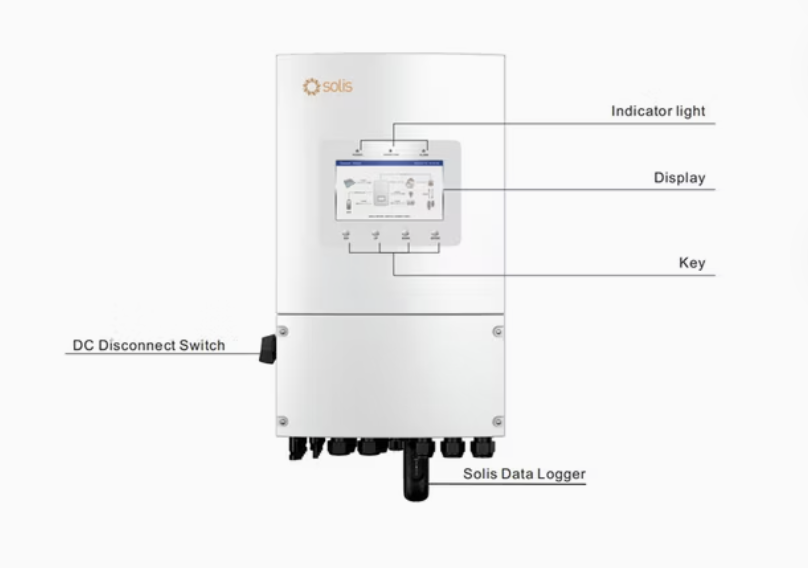
Solis Datalogger
This page provides an overview of the Zigbee Datalogger including basic troubleshooting tactics. If you need more support after viewing the resources on this page, please contact SunCommon Customer Support.
Getting Started
The first step to troubleshooting your issue will be to reset your monitoring devices. Solis dataloggers are essential components in monitoring and managing solar power systems, and ensuring smooth operation.
If you’re experiencing issues with your Solis datalogger, this troubleshooting guide will help you diagnose and resolve common problems.
1. No Communication with Inverter
Symptoms:
- The datalogger is not connecting or receiving data from the inverter.
- The “COM” light is off or blinking intermittently.
Steps to Troubleshoot:
- Check Connection: Ensure that the datalogger is securely connected to the inverter.
- Reset the Datalogger: Press and hold the reset button located on the back of the device for 15 seconds. DO NOT try to twist the datalogger to access this button- this may result in permanent damage to the device, which is NOT covered under warranty.
- Verify Inverter Addressing: Make sure the inverter addresses are correctly set, typically starting with “01” for the master inverter.*
- COM Port Voltage: If the issue persists, try testing for AC voltage between the pins. We’re looking for approximately 1-2 and 4-5 volts.
2. Datalogger Not Connecting to Wi-Fi/Internet
Symptoms:
- The “NET” light is off or blinking, indicating no internet connection.
- The datalogger is not visible on the SolisCloud platform.
Steps to Troubleshoot:
- Check Network Compatibility: Ensure the network is not 5G. Solis dataloggers can only communicate with 2.4Hz networks.
- Check Wi-Fi Password: Ensure that the Wi-Fi password is entered correctly during setup are correct. Repeat the setup process if necessary.
- Signal Strength: Verify that the datalogger is within the range of your Wi-Fi network, 50 ft. max. If the signal is weak, consider using a Wi-Fi extender.
- Reset the Datalogger: Perform a reset on the datalogger to clear any temporary issues. Hold the reset button for 15 seconds and reconnect. DO NOT try to twist the datalogger to access this button- this may result in permanent damage to the device, which is NOT covered under warranty. illuminated and the Link light will flash continuously.
3. Datalogger Offline on SolisCloud
Symptoms:
- The datalogger appears offline on the SolisCloud monitoring platform.
- No data is being transmitted.
Steps to Troubleshoot:
- Check Power Supply: Ensure that the datalogger is powered on and receiving adequate power.
- Internet Connection: Verify that the datalogger has a stable internet connection by checking the “NET” light. If the light is off, troubleshoot the Wi-Fi connection.
- Restart Router: Restart your Wi-Fi router to refresh the connection between the datalogger and the internet.
- Check for IP Conflicts: Ensure there are no IP address conflicts on your network that might prevent the datalogger from connecting to the internet.
4. Inaccurate or Missing Inverter Data
Symptoms:
- Data shown on SolisCloud is inconsistent with inverter readings.
- Inverter data not shown.
Steps to Troubleshoot:
- Verify Time Settings: Ensure the time settings on the inverter are correct. Incorrect time settings can cause data inconsistencies.
- Check Firmware Versions: Ensure both the inverter and datalogger firmware are up to date, as firmware issues can cause data errors.
- Datalogger Firmware Update: Check if a firmware update is available for your datalogger and update it through the SolisCloud platform. If the option does not show on Solis Cloud please contact customer service)
- Reboot System: Power cycle the inverter and datalogger if necessary, to refresh the data connection.
- Review String Configuration: Ensure that all strings are properly configured and connected to the inverter.
5. LED Indicator Status
Understanding LED Indicators:
- NET Light (Green): Indicates the status of the internet connection.
- Solid: Connected to the internet.
- Blinking: Attempting to connect.
- Off: No connection.
- Note: If a Solis S1-W4G-ST NET light is blue means it’s connected or attempting to connect via cellular data.
- COM Light (Amber): Indicates communication between the datalogger and inverter.
- Solid: Communication is established.
- Blinking: Attempting to communicate.
- Off: No communication.
- PWR Light (Red): Indicates the datalogger is on.
General Troubleshooting Based on LED Status:
- If both the NET and COM lights are off, check the power supply to the datalogger.
- If only the COM light is off, focus on troubleshooting the connection between the inverter and datalogger.
- If only the NET light is off, focus on the internet connection.
Resetting the Datalogger
Steps to Reset:
- Press and hold the reset button on the datalogger for 15 seconds. DO NOT try to twist the datalogger to access this button- this may result in permanent damage to the device, which is NOT covered under warranty.
- Release the button and wait for the datalogger to reboot.
- Reconfigure the settings if necessary.
When to Reset:
- The datalogger is unresponsive.
- No access point is discoverable.
- Internet or communication issues persist after troubleshooting.
Once the reset is complete, please take note of any error lights or messages you are seeing. If you are unsure of what you are seeing, take a photo of the device and include it in your email response.
Please be aware it can take up to 24 hours for alerts to clear on your monitoring page.
Need more support?
Get in touch:
support@suncommon.com or 802-882-8685
What we need from you
In your email or phone message, please provide the following information:
- Your name or the name on the account
- Property address
- Phone number and email address
- A detailed description of your issue, including any troubleshooting you may have already tried
Emails sent to the above address will automatically create a case in our system; however, if you do not reach someone over the phone and do not leave a voicemail, our system does not create a case. Cases will be addressed in the order they are created. The more information you leave, the more quickly a Customer Support team member can begin working on your case and resolve your issue!
How we’ll support you
We offer technical support and customer education through email or over the phone, including equipment troubleshooting, assistance with monitoring issues and utility billing questions. Your customer support specialist will work with you to determine if onsite service is required. Before confirming your service appointment, we collect a standard upfront service fee. This fee includes:
- Dispatch fee – Covers dispatching a service vehicle and technician, and includes the first 30 minutes of onsite service.
- Drive Time Fee – Covers the technician’s travel time.
View our Customer Care and Maintenance Guide here for more information on services and rates.