
Customer Support Resource Guides:
Tesla Powerwall Batteries
This page provides an overview of Tesla Powerwall including basic troubleshooting tactics. If you need more support after viewing the resources on this page, contact SunCommon Customer Support.
Battery Backup System Maintenance
Battery backup systems are reliable and easy to maintain. Keep your Powerwall unit(s) free and clear of debris, especially around the air intake and exhaust, and don’t forget to monitor your battery’s performance. SunCommon does not actively monitor your Powerwall. Best practice recommends checking on your system’s battery performance at least once a week.
Monitoring Methods
Download the Tesla App.
- The ‘Home’ screen displays the real-time energy flow of your Powerwall, grid connection, and solar system.
- The ‘Energy’ screen allows you to view historical data of your energy consumption and system production
Troubleshooting
Warning: For Powerwall systems with interconnected solar, make sure to turn off the solar inverter or disconnect the solar source before turning off the Powerwall unit to avoid damaging your system.
- If there is snow/ice on your solar array, your Powerwall will not charge until the array is clear and producing.
- If the Tesla App is not reporting any data, ensure that your home Internet connection is working. If you’ve recently made changes to your WiFi network, you may need to reconnect your Backup Gateway to your new network.
- If the Gateway and Powerwall are both unresponsive, it may be necessary to powercycle (or reset) the system. Note that powercycling must be done in the proper sequence as defined below.
What Do the Lights on my Powerwall Indicate?
Blinking: No data transfer to the Tesla App
Solid: On and communicating properly
Pulsing: Discharging or charging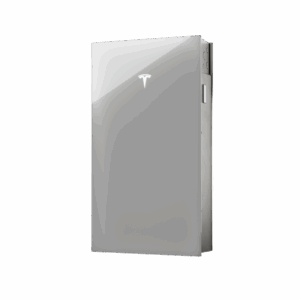
Powercycle Steps
1. If Powerwall is connected to a solar system, turn off your solar inverter or disconnect the solar source.
2. Turn off Powerwall by setting its On/Off switch to the OFF position.
3. Turn off the AC breaker to Powerwall.
4. Wait for at least one minute.
5. Turn the AC breaker back on.
6. Turn on Powerwall. If the above steps do not resolve the issue, please contact SunCommon Customer Support at support@suncommon.com or Tesla Powerwall Support at 877-961-7652 option 2.
- Check the breakers in your IQ combiner panel to see if any have tripped. If so, flip the breakers all the way to the off position and then back to on.
- Wait for 1 hour to allow the data to refresh and then check your monitoring.
If this issue occurs repeatedly, please contact Customer Support.
Please view the Enphase page How do I read the LEDs on the Envoy for more information.
Still have questions? Contact Customer Support.
In winter, please check the array for snow. Your microinverters will not be able to report when the modules are covered in snow. This error should clear on its own when the snow clears from your array.
If the error occurs when the array is clear, please follow these troubleshooting steps.
If the entire array is fully covered in snow, NO.
However, the cool thing about microinverters is that they allow the modules to produce independently. That means, as your modules become clear they will start producing energy for you even though other parts of your array may still be covered in snow.
Click here to learn how to update the network settings for your Envoy-S or IQ Envoy.
Need more support?
Get in touch:
support@suncommon.com or 802-882-8685
What we need from you
In your email or phone message, please provide the following information:
- Your name or the name on the account
- Property address
- Phone number and email address
- A detailed description of your issue, including any troubleshooting you may have already tried
Emails sent to the above address will automatically create a case in our system; however, if you do not reach someone over the phone and do not leave a voicemail, our system does not create a case. Cases will be addressed in the order they are created. The more information you leave, the more quickly a Customer Support team member can begin working on your case and resolve your issue!
How we’ll support you
We offer technical support and customer education through email or over the phone, including equipment troubleshooting, assistance with monitoring issues and utility billing questions. Your customer support specialist will work with you to determine if onsite service is required. Before confirming your service appointment, we collect a standard upfront service fee. This fee includes:
- Dispatch fee – Covers dispatching a service vehicle and technician, and includes the first 30 minutes of onsite service.
- Drive Time Fee – Covers the technician’s travel time.
View our Customer Care and Maintenance Guide here for more information on services and rates.